Cloudways is a managed cloud hosting platform, not a traditional web host. Instead of owning servers, Cloudways lets you spin up servers on DigitalOcean, Vultr, Linode (Akamai Cloud), Amazon Web Services, or Google Cloud Platform from a single dashboard and handles server management tasks like security patches, caching, and backups for you.
This review covers who Cloudways is best for, how pricing works, the difference between their Standard and Autonomous plans, what the platform is genuinely good at, and where it falls short. For context on how Cloudways compares to regular hosting, see our guide on what makes Cloudways different from regular hosting.
Who Is Cloudways For?
Cloudways sits between shared hosting and self-managed VPS. It is a good fit if you:
- Want cloud server performance without managing Linux yourself
- Run WordPress and want reliable uptime with server-level caching (Varnish, Redis, Memcached)
- Need to host multiple client sites on one server and pay per server, not per site
- Are migrating from shared hosting and want meaningful speed and resource improvements
- Need flexibility to switch cloud providers without changing your management workflow
Cloudways is a harder sell if you need a domain registrar, built-in email hosting, or a one-click website builder. Those features are intentionally out of scope.
Cloudways Pricing
Cloudways charges per server per hour, billed monthly. You pay for the underlying cloud server at the provider’s rate plus Cloudways’s management fee. The combined costs as of 2026:
- DigitalOcean 1 GB RAM / 1 vCPU / 25 GB SSD: approximately $11 per month. Best for low-traffic WordPress sites or staging environments.
- DigitalOcean 2 GB RAM / 1 vCPU / 50 GB SSD: approximately $22 per month. Handles a moderate-traffic WordPress site comfortably.
- Vultr 1 GB / 1 vCPU / 25 GB SSD: approximately $11 to $13 per month depending on region.
- Linode 2 GB / 1 vCPU / 50 GB SSD: approximately $22 per month.
- AWS and GCP: Higher entry costs, starting around $36 per month for small instances, with pricing varying more by region and instance type.
For a detailed breakdown of each provider option, see our guide to choosing a Cloudways hosting provider.
There is no contract and no setup fee. You can pause or delete a server at any time. Cloudways also runs a free 3-day trial that does not require a credit card. For a full breakdown of setup costs and first-month configuration, see the Cloudways setup and migration guide. If you are unsure which cloud provider to select at signup, our guide on which Cloudways hosting supplier to choose compares all five providers by price, location, and use case.
Cloudways Standard vs Autonomous: Which Plan Type?
Cloudways now offers two distinct hosting approaches. Understanding the difference before signing up saves confusion later.
Cloudways Standard is the original server-based platform. You choose a cloud provider (DigitalOcean, Vultr, Linode, AWS, or GCP), select a server size, and pay per server per hour. You control the server configuration and scale it manually through the dashboard. This is what most Cloudways users are running today, and it is what the rest of this review covers.
Cloudways Autonomous is a newer option built on Cloudflare’s global network. It removes the concept of a fixed server entirely: your application scales automatically based on traffic, and you pay per resource usage rather than per server hour. Autonomous is designed for sites with unpredictable or highly variable traffic, where running an always-on server would be wasteful or where traffic spikes would otherwise require manual scaling interventions.
The practical differences:
- Cost model: Standard is predictable (fixed monthly cost per server). Autonomous is usage-based, which can be cheaper at low traffic and more expensive during sustained high-traffic periods.
- Server management: Standard requires choosing provider, region, and size. Autonomous has no server to configure.
- Performance: Autonomous runs on Cloudflare’s edge, which can deliver faster response times globally. Standard performance depends on the cloud provider you choose.
- WordPress compatibility: Standard supports the full WordPress plugin ecosystem without constraints. Autonomous has limitations with certain server-dependent plugins.
- Control: Standard gives you SSH access, manual caching configuration, and full PHP stack control. Autonomous trades that control for simplicity and auto-scaling.
For most WordPress developers and agencies, Standard remains the right choice. Autonomous makes sense if you want a managed, traffic-responsive platform and do not need direct server access. If you are comparing plans primarily on price, run a quick estimate using your expected monthly visits to see which model comes out cheaper at your traffic level.
To make the right call between the two:
- Choose Standard if you want SSH access, a predictable monthly bill, full plugin compatibility, and hands-on server control. Most developers and agencies running client sites fall here.
- Choose Autonomous if you run a WooCommerce store with flash sales or seasonal spikes, publish content that occasionally goes viral, or want auto-scaling without making manual resize decisions. Autonomous handles the traffic increase and bills based on actual usage.
- Avoid Autonomous if your plugins require SSH access, direct filesystem operations outside the WordPress uploads folder, or server-level cron jobs that bypass WordPress. Autonomous runs on Cloudflare’s infrastructure and does not support SSH; some server-dependent plugins do not function on it.
Why Use Cloudways for WordPress?
Cloudways is well-regarded in the WordPress community for consistent TTFB performance and a simpler management experience than a raw VPS. Key reasons people choose it:
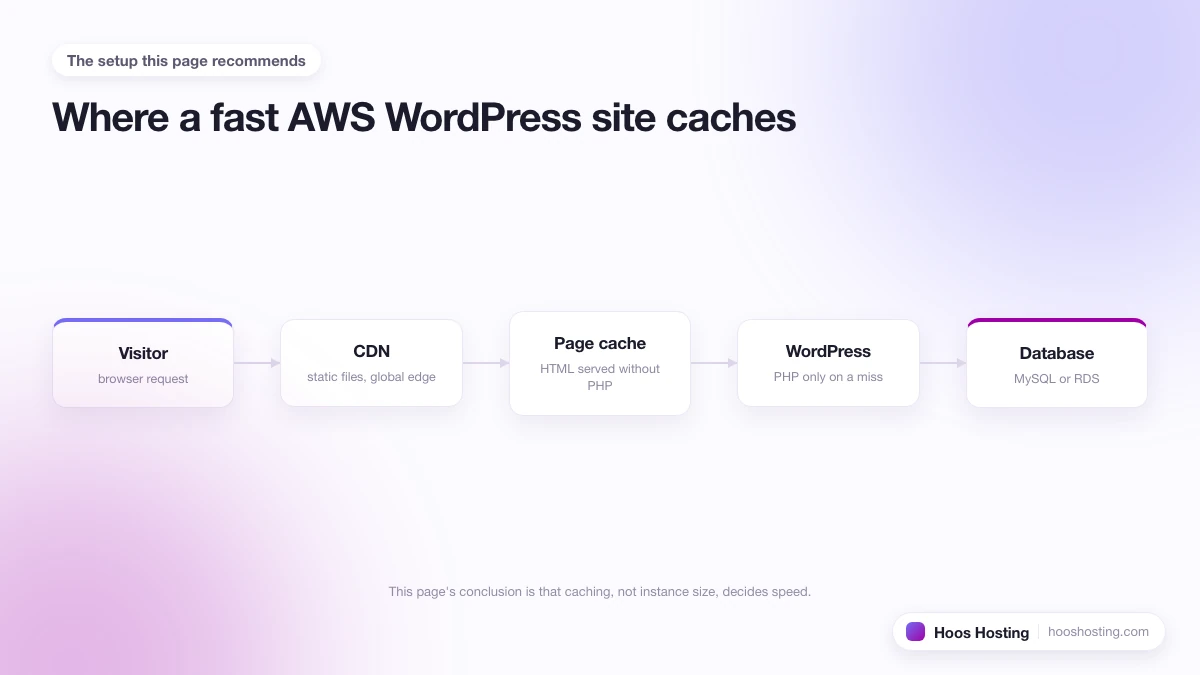
- Multi-layer caching: Every WordPress install gets Breeze (the Cloudways caching plugin), Varnish at the server level, and optional Redis object caching. This stack handles high-traffic pages without expensive server upgrades.
- One-click WordPress staging: Clone any application to a staging environment with a single click from the Cloudways dashboard. Push changes to live when ready.
- Free migrator plugin: The Cloudways Migrator plugin moves an existing WordPress site to your new server at no extra cost. You can also migrate manually via SSH and WP-CLI if you prefer. Moving from SiteGround specifically? The SiteGround to Cloudways migration guide covers SG Optimizer removal, email migration, and the DNS cutover.
- Multiple CMS options: Beyond WordPress, Cloudways supports Magento, WooCommerce, Joomla, Drupal, Laravel, and custom PHP applications.
- Choice of five cloud providers: DigitalOcean, Vultr, Linode, AWS, and GCP. You can read our individual reviews of Google Cloud Platform and Amazon Web Services for deeper comparisons. You can also host multiple websites on one Cloudways server, since billing is per server, not per application.
Cloudways Pros and Cons
After using the platform across multiple projects, here is an honest assessment:
- Pro: Genuine server-level performance at shared-hosting prices. A $22 DigitalOcean server handles more concurrent visitors than a typical $30 shared plan.
- Pro: Pay-per-hour billing with no lock-in. You can scale up for a traffic spike and scale back down without penalty.
- Pro: Strong uptime record. Cloudways passes SLA compliance responsibility to the underlying cloud provider (DigitalOcean, AWS, etc.) rather than owning it, and provider uptime is typically 99.95% or higher.
- Con: No domain registration. You must buy domains from a separate registrar (Namecheap, Google Domains, etc.) and point them at your server.
- Con: No built-in email hosting. You need Google Workspace, Zoho Mail, or a similar third-party provider for business email.
- Con: No file manager in the dashboard. You manage files via SSH/SFTP or a third-party plugin. That said, you can view application logs and reset file permissions directly from the Application Settings panel.
- Con: Technical support assumes some server knowledge. Live chat is available 24/7, but support quality for complex issues varies, and the most detailed help is in the documentation rather than from agents.
Cloudways Security and Backups
Cloudways handles OS-level security patching automatically. The platform includes a dedicated firewall per server and offers free SSL certificate installation via Let’s Encrypt. After installing the certificate, enabling the HTTP to HTTPS redirect on Cloudways takes about 30 seconds. For WordPress specifically, you also get two-factor authentication for Cloudways dashboard access.
Backups are automated at the application level. You set the frequency (hourly down to every 8 hours) and retention period from the application settings panel. It is also good practice to run manual backups before any major change. See our guides on server-level backups and application-level backups on Cloudways.
For SSL setup, firewall configuration, and WordPress hardening, the Cloudways security and SSL guide covers the full setup in order.
Performance and Speed
Real-world TTFB benchmarks for Cloudways WordPress installs on DigitalOcean typically come in under 300ms for a cached page and under 800ms for an uncached PHP request on a 1 GB server. Enabling Redis object caching reduces database query load on WooCommerce stores and high-comment sites significantly.
For the full caching stack explanation and hands-on speed tuning steps (Varnish, Redis, Breeze, OPcache, Core Web Vitals), see the Cloudways performance and speed guide.
Server location matters. Choosing the nearest DigitalOcean region to your main audience is one of the cheapest speed improvements available on Cloudways. For guidance on which region to pick, see the article on choosing the best Cloudways server location. Adding Cloudflare in front of your Cloudways server further improves global load times and adds DDoS protection. See the guide on using Cloudflare with Cloudways for the tradeoffs and setup steps.
Cloudways Management Features
The Cloudways dashboard covers most day-to-day management without touching the command line:
- Scale server RAM and storage from the Server Management panel
- Set up and schedule cron jobs from Application Settings
- Configure server-level redirects and SSL settings
- View PHP error logs, access logs, and web server logs from the Logs tab
- Clone applications to staging with one click
For step-by-step guides on common tasks, see our how-to sections on scaling a Cloudways server, running cron jobs on Cloudways, and installing SSL on Cloudways.
Cloudways Support: What to Actually Expect
Support is one of the most discussed topics in Cloudways communities, and the honest picture is mixed. The platform offers 24/7 live chat, ticketing, and a knowledge base. For straightforward questions about the dashboard, billing, or DNS setup, live chat response times are typically under five minutes and the agents are competent. Where things get inconsistent is with server-level issues that require debugging outside the standard Cloudways stack.
- Managed tasks scope: Cloudways covers OS-level patches, stack updates, and infrastructure problems. It does not debug your WordPress plugins, theme conflicts, or application code. If your site is slow because of a badly-written plugin, support will tell you to investigate the application layer yourself.
- Platform-level bugs: When a Cloudways-managed component (Varnish, Redis, the Breeze plugin, a stack upgrade) causes a problem, support takes ownership and resolves it. These cases are handled well.
- Phone support: Not available on any plan. All support is chat and ticket-based. If phone access is a hard requirement for your organisation, Cloudways is not the right fit.
- Add-on: Cloudways Bot (AI agent): Cloudways launched an AI assistant for common tasks like application setup and basic troubleshooting. It handles routine queries quickly, though it redirects to a human agent for anything non-standard.
The best mitigant for support gaps is the documentation. Cloudways maintains thorough guides for most platform tasks, and their community forum resolves many configuration questions faster than chat. Budget time to self-serve for WordPress-level issues rather than assuming Cloudways support covers everything end-to-end.
When to Switch From Shared Hosting to Cloudways
Most people move to Cloudways from shared hosts like Bluehost, SiteGround, or HostGator when shared hosting stops keeping up. The signals that it is time to make that move:
- Recurring “resource limit reached” errors: Shared plans enforce CPU caps that trigger 503 errors during traffic spikes. If this happens more than once per week, you are outgrowing the shared environment.
- TTFB over 600ms consistently: A well-configured Cloudways server on DigitalOcean typically delivers TTFB under 300ms for cached pages. If GTmetrix or WebPageTest shows your current host consistently above 600ms, the bottleneck is likely server capacity, not your code.
- WooCommerce checkout slowdowns: Shared hosting’s PHP process limits hit hardest during checkout, where concurrent sessions all need uncached PHP responses. Even a $22 DigitalOcean server on Cloudways handles WooCommerce checkout load far better than a $30 shared plan.
- You are running multiple client sites: Cloudways bills per server, not per site. Once you have three or more WordPress sites, consolidating them on one $22 Cloudways server is usually cheaper than three separate shared accounts and offers better isolation and performance per site.
The main thing you give up moving to Cloudways is the all-in-one convenience of shared hosting (domain, email, and site under one login). If you can handle those separately through a registrar and a transactional email service, Cloudways handles the rest.
How Cloudways Compares to Other Hosts
Cloudways fits a specific niche between shared hosting and premium managed WordPress platforms. Here is how it stacks up against the options most people consider:
- Cloudways vs WP Engine: WP Engine is a fully managed WordPress host starting from $25 per month for one site, with hands-on WordPress support, managed updates, and Genesis Framework access. Cloudways wins on multi-site economics (one server, unlimited sites) and cloud provider flexibility. WP Engine is the better fit if you want more proactive WordPress-level support and are willing to pay for it.
- Cloudways vs Kinsta: Kinsta runs exclusively on Google Cloud’s Premium Tier with containerised WordPress environments, starting at $35 per month for one site. Kinsta is faster out of the box and offers 24/7 WordPress expert support. Cloudways is cheaper for developers managing multiple sites and gives you SSH access and full server control that Kinsta does not. See our Google Cloud Platform review for a deeper look at what GCP infrastructure delivers.
- Cloudways vs SiteGround: SiteGround starts at around $6 per month and includes email, a domain, and a simpler interface. Cloudways becomes the better value once SiteGround’s resource limits cause “resource limit reached” errors. For a growing business or an agency running client sites, Cloudways is the right next step.
- Cloudways vs a bare DigitalOcean VPS: A raw DigitalOcean Droplet costs less per resource unit but you manage everything yourself: OS updates, firewall rules, PHP configuration, and security patches. Cloudways charges a management premium to handle all of that for you. The right choice depends on whether you have the time and skill to manage a bare server.
Verdict: Is Cloudways Worth It?
Cloudways is the right choice if you are outgrowing shared hosting, want cloud server performance without a Linux sysadmin skill requirement, and can live without built-in email and domain registration. The value proposition is strong in the $11 to $50 per month range: you get dedicated resources, a mature management dashboard, and genuine flexibility to switch providers without migrating your workflow.
If you want an all-in-one with a website builder, email, and a domain under one roof, a shared host like Bluehost or SiteGround will be less friction. If you want even more control than Cloudways offers, a raw VPS from DigitalOcean or Linode gives you full root access. Cloudways sits in a practical middle ground, and for WordPress developers and growing businesses it hits that ground consistently.
For a full walkthrough of getting started, see our complete Cloudways hosting guide. Ready to create an account? Follow the step-by-step Cloudways setup guide from signup through to a live domain. For the ongoing maintenance routine covering backups, cron jobs, monitoring, and server alerts, see our Cloudways management and maintenance guide. For the full Cloudways speed optimisation stack including Varnish tuning, PHP workers, Redis, and CDN choices, see our Cloudways performance and speed guide. If you are currently on SiteGround and considering the move, our step-by-step guide on how to migrate from SiteGround to Cloudways covers the SiteGround-specific plugins, DNS cutover, and what to expect performance-wise after the switch.