Your Cloudways application files live at /home/master/applications/{folder-name}/public_html on the server. The folder name is the unique identifier Cloudways assigns when you create an application. You need it for SSH access, WP-CLI commands, cron jobs, and any scripts that reference server files directly. This guide shows where to find it in the Cloudways dashboard, how to locate it over SSH, how to rename it, and what to update afterwards.
The SSH Path at a Glance
Once you know your folder name, the full path to your WordPress files on the server is:
/home/master/applications/your-folder-name/public_html
Replace your-folder-name with the actual name shown in Application Settings. Every SSH command, WP-CLI command, and cron job that references your WordPress files uses this path. If you have multiple applications on the same server, each has its own folder under /home/master/applications/. Run ls /home/master/applications/ over SSH to list all of them at once.
Why You Need the Folder Name
The folder name is used in several practical situations:
- SSH and SFTP access - When you connect to your server using the master credentials, your application files are located at
/home/master/applications/your-folder-name/public_html. Without the folder name, you cannot navigate to your files on the command line. - Cron jobs - If you set up a server-level cron job outside WordPress, the absolute path to WP-CLI or a script file requires the folder name.
- Server migration - When migrating an application to a new server, knowing the folder name helps you confirm which directory is being moved or identify the application in backup files. Our Cloudways setup and migration guide covers where it fits into the WordPress Migrator plugin workflow.
- After cloning - Cloned applications often keep the original folder name with a prefix. Renaming them makes multi-site server management cleaner.
What the Folder Name Looks Like
Cloudways auto-generates folder names when you create an application. They typically look like one of these formats:
wordpress-abc123mysite-xkj9papplication-7f2b1
The name is always lowercase, uses only letters, numbers, and hyphens, and has no connection to your domain name unless you renamed it manually. If you have multiple applications on the same server, the folder names are the only way to tell them apart on the command line.
Step 1 - Log In
Log into your Cloudways account at platform.cloudways.com.
Step 2 - Open Your Application
In the top navigation bar, click Applications. Find your application in the list and click its name to open it.
Step 3 - Go to Application Settings
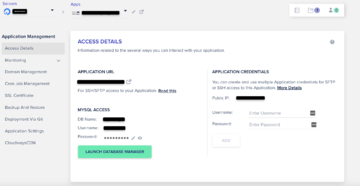
Inside the application, click Application Settings in the left-hand panel. You land on the General tab by default. The Application Details section near the top shows the folder name assigned to this application.
Finding the Folder Name via SSH
If you already have an SSH session open on the server, you can find all application folder names without logging into the dashboard. Once connected as the master user, run:
ls /home/master/applications/
This lists every application folder on that server. You can also check which folder belongs to a specific site by looking at the database credentials inside each folder:
grep DB_NAME /home/master/applications/your-folder-name/public_html/wp-config.php
The database name in wp-config.php usually matches the folder name or contains the site identifier.
The Full SSH Path Format
Once you have the folder name, the full path to your application web root on the server is:
/home/master/applications/your-folder-name/public_html
Replace your-folder-name with the actual folder name shown in Application Settings. When you connect via SSH using the master credentials, this is the directory you need to navigate to in order to manage your WordPress files, run WP-CLI commands, or troubleshoot permission errors.
Step 4 - Rename the Application Folder (Optional)
To rename the folder, click the pencil (edit) icon next to the current folder name in Application Settings. Type the new name and save. Use only lowercase letters, numbers, and hyphens - no spaces or special characters. The change takes effect immediately and updates the server-side path.
Renaming the folder does not break your live site or change your domain. It only affects the internal directory path on the server. Before renaming, check and update any of the following that reference the old folder name:
- Cron jobs with absolute file paths (check the Cloudways Cron Job Manager and any server-level crontab entries)
- Scripts or config files that hard-code the path (common in deploy scripts and CI/CD pipelines)
- SFTP bookmarks in your FTP client
- Local shell aliases or scripts pointing to the old path
Why Would You Want to Rename the Folder?
Common reasons to rename a Cloudways application folder:
- The auto-generated name is hard to remember when navigating via SSH
- You took over a site from a developer who named it after their own project
- You cloned an application and want to distinguish the copy from the original
- You rebranded the site and want the folder name to match the new domain
- You had a security incident and want to change file paths as part of a cleanup
Using Your Folder Name With WP-CLI
WP-CLI is the command-line interface for WordPress, and it requires knowing the full path to your WordPress installation to run commands. On Cloudways, that path uses your application folder name:
wp --path=/home/master/applications/your-folder-name/public_html COMMAND
Replace your-folder-name with the actual name from Application Settings. Some practical examples:
- Check WordPress version:
wp --path=/home/master/applications/your-folder-name/public_html core version - Flush the cache:
wp --path=/home/master/applications/your-folder-name/public_html cache flush - Export the database:
wp --path=/home/master/applications/your-folder-name/public_html db export backup.sql - Update all plugins:
wp --path=/home/master/applications/your-folder-name/public_html plugin update --all
If you run WP-CLI without the --path flag from a directory that is not the WordPress root, you get an error: Error: This does not seem to be a WordPress installation. The fix is always to add the full path with the correct folder name.
Troubleshooting: Common Path Errors on Cloudways
If SSH or WP-CLI commands are failing, the folder name is usually part of the cause. Common errors and fixes:
- “No such file or directory”: The folder name in your command does not match the actual folder on the server. Run
ls /home/master/applications/to list all application folders and find the correct name. Typos and capitalisation differences are the most frequent cause. - “Permission denied”: You are connected to the server but not as the master user, or you are trying to write to a directory your user does not own. Confirm you are using the master credentials from the Cloudways dashboard (Server Management > Master Credentials), not a custom SSH user.
- WP-CLI finds the wrong WordPress install: On servers with multiple applications, WP-CLI without a
--pathflag may pick up a different WordPress in your current working directory. Always use the explicit--path=/home/master/applications/your-folder-name/public_htmlargument when running commands on a multi-site server. - Cron job not firing: If a cron job using an absolute path stopped working after a folder rename, update the path in the Cloudways Cron Job Manager (Application Settings > Cron Job Management) and in any server-level crontab entries set via SSH.
Final Word: Finding and Renaming Your Cloudways Application Folder
Your application folder name is in Application Settings > General > Application Details inside the Cloudways dashboard. On the server, all folders live under /home/master/applications/ - you can also find them by running ls /home/master/applications/ over SSH. Renaming is straightforward and takes effect immediately, but check any cron jobs, scripts, or SFTP bookmarks that reference the old path before you save the change.