Moving to Cloudways involves two distinct jobs: spinning up a server with the right cloud provider, and getting your WordPress site over without breaking links, sessions, or SEO. This guide walks through both, plus the pre-flight checks most tutorials skip and the post-migration steps that catch people out a week later.
What This Guide Covers
Cloudways is a managed layer over five infrastructure providers (DigitalOcean, Vultr, Akamai, AWS, and Google Cloud), so the setup process has a few extra choices compared with a shared host. The full provider context lives in our Cloudways hosting guide; this page focuses on the practical steps to get a working WordPress site running on Cloudways with minimal downtime. We cover account creation, server selection, the WordPress Migrator plugin, the free managed migration option, manual SFTP transfers, and what to do after the site is live.
Step 1: Create Your Account and Launch a Server
Flexible vs Autonomous: Which Plan Fits Your Site
Cloudways offers two plan types. Flexible gives you a fixed server size you choose and manage manually. You pick the RAM, CPU, and storage, and you scale up by clicking a button when you need more. Autonomous uses auto-scaling, adjusting resources up and down based on real-time traffic. Flexible suits sites with predictable traffic and teams that want direct control over costs. Autonomous suits stores or apps with unpredictable spikes where manual scaling creates risk. For most WordPress blogs and small WooCommerce stores, Flexible on a DigitalOcean or Vultr instance is the right starting point.
Choosing Server Size and Region
You start by signing up at Cloudways and confirming your email. The first server choice matters because it sets your monthly cost and the data centre region. Most WordPress sites do well on a small DigitalOcean or Vultr instance to begin with; you can scale up later without rebuilding the application. Region choice should match where most of your visitors are located, since latency before the CDN cache is a real factor in TTFB.
The full click-by-click walkthrough, including how to pick between Flexible and Autonomous, lives in how to set up Cloudways. If you want background on which infrastructure provider to choose under the hood, the post what hosting supplier should I choose on Cloudways goes deeper, and how to choose the best Cloudways server location covers the region question.
Step 2: Run a Pre-Migration Checklist
Backup and Caching Plugin Prep
Before touching the migration plugin, get these out of the way. Skipping any of them is the most common cause of a stuck or broken migration:
- Take a fresh full backup at your current host. Do not rely on the destination backup; you want a known-good rollback file already in your hands.
- Note your current DNS records, especially MX records for email. Cloudways does not host email, so MX entries must continue pointing to your existing mail provider after the move.
- Deactivate aggressive caching plugins (WP Rocket, W3 Total Cache, LiteSpeed Cache) before migrating. They can interfere with file copying and overwrite settings on the destination.
- Disable security plugins that block file changes (Wordfence file integrity, iThemes lockdown rules, Sucuri firewall scans).
- Make sure your wp-admin login works and you have a Cloudways-side admin password ready in case the WP Migrator hits an authentication snag.
- If you use a CDN that rewrites URLs (Cloudflare in proxy mode, Bunny, KeyCDN), set it to development or DNS-only mode for the duration of the move.
- Have your domain registrar login on hand. You will need it to update nameservers or A records once the migration is verified. If you want to manage DNS records directly from Cloudways rather than at your registrar, the DNS Made Easy add-on on Cloudways is available as a paid subscription through the Add-Ons panel.
Step 3: Choose Your Migration Method
Cloudways supports three migration paths. Pick the one that fits your technical comfort and how much hand-holding you want.
Method 1: The Cloudways WordPress Migrator Plugin
This is the default route for most users. The plugin is free, works on single sites and multisites, and copies files plus the database to the new server in one pass. You install it on your current site, paste in your destination Cloudways details (database name, SFTP host, application folder), and run it. The plugin shows progress and reports on completion.
To get the destination credentials right, you need to know your application folder name on the Cloudways side. That is not the same as your domain or application label; it is a short alphanumeric string Cloudways assigns to each app. The post how to find your application's folder name on Cloudways shows where it lives in the dashboard.
Step-by-step screens for the whole plugin run are in how to migrate a WordPress site to Cloudways. If you are moving from SiteGround specifically, our guide on migrating from SiteGround to Cloudways covers the SG Optimizer, bundled email, and backup-retention details that catch teams using a generic walkthrough.
Method 2: Free Managed Migration
Every Cloudways account includes one free managed migration. Their team handles the entire move and emails you when it is done. This is the right choice if your site has heavy customisation, a large WooCommerce database, or a stack that includes more than just WordPress (a forum, a separate membership system, a custom subdomain). You request it through a form in the dashboard. Turnaround is usually one to three business days.
Method 3: Manual SFTP and Database Export
Manual migration suits non-WordPress applications, sites where the plugin fails repeatedly, or anyone who wants full control. The process is: SFTP the entire wp-content folder to the destination, export the database via phpMyAdmin or WP-CLI, import it on Cloudways through the supplied phpMyAdmin or via SSH, then update wp-config.php with the new database credentials. A search-and-replace on the database is required if your URL is changing.
Step 4: Test Before You Switch DNS
What to Test on the Staging URL
Cloudways gives every application a temporary URL in the form wordpress-12345-67890.cloudwaysapps.com. Always test on this URL first. Walk through the homepage, a blog post, the search bar, the WooCommerce checkout if you have one, and any logged-in flow such as a member dashboard. Look for missing images, broken internal links, and SSL warnings.
Fixing Mixed-Content Warnings
If you spot mixed-content warnings, run a Better Search Replace pass on the database to swap any hard-coded http:// references for https://. Hardcoded URLs are the single biggest source of post-migration breakage. Once SSL is installed, also enable the redirect so visitors who type http:// are sent to the secure version automatically. See our guide on how to redirect HTTP to HTTPS on Cloudways for the three available methods.
Step 5: Point Your Domain to Cloudways
A Record Update vs Full Nameserver Change
Once the test URL works cleanly, change your DNS. The standard method is to log in at your registrar and update the A record for the root domain to point at your new Cloudways server IP, plus a CNAME for the www subdomain. Some teams prefer to move nameservers entirely; both work. Keep your existing MX records untouched so email keeps flowing.
After DNS, return to Cloudways and update the application’s domain name in the dashboard so WordPress knows its new home, then install a free Let's Encrypt SSL certificate from inside the SSL Certificate panel. For the broader SSL setup including wildcard certificates, troubleshooting mixed content, and Cloudflare Full (Strict) mode, see our Cloudways security and SSL guide. DNS propagation can take anywhere from minutes to 48 hours, so test from a phone on cellular data, not just your home network, to confirm visitors see the new site.
Step 6: Post-Migration Checklist
First Week After Going Live
Most guides stop at SSL. These are the items worth running through in the first week:
Once your site is live on Cloudways and DNS has propagated, confirm that SSL is correctly installed. See our guide on how to install SSL on Cloudways if you need to set up or replace the certificate.
- Confirm the homepage, top five most-trafficked posts, and any conversion pages all load and display images correctly.
- Re-enable your caching plugin and warm the cache by hitting key URLs.
- Reconnect Google Search Console to verify the new server returns 200 status codes for indexed URLs.
- Submit a fresh sitemap from the new install.
- Check that scheduled cron jobs are firing on the Cloudways server, not the old one. Cloudways uses real cron rather than wp-cron by default, which is faster but has different timing.
- Review server resource graphs after 48 hours to confirm the chosen plan size is right. Scaling up takes minutes; scaling down without a rebuild is harder.
- Cancel your old hosting plan only after a full week of clean operation on Cloudways. If you cancel too early, you lose the rollback safety net.
- Check the Cloudways application logs for PHP errors or 500 responses in the first 24 hours after going live. The log viewer shows error, PHP, and NGINX logs in one panel and takes five clicks to reach from the dashboard.
If you came from a host that bundled email, set up a separate mailbox provider (Google Workspace, Microsoft 365, Zoho, Fastmail) before changing DNS. Cloudways will not host mail, so an unconfigured MX record means missing email from the moment you switch.
Migrating WooCommerce to Cloudways
Database Size and PHP Memory for WooCommerce
WooCommerce databases grow faster than a standard WordPress install. Product images, order history, customer session data, and plugin metadata all accumulate quickly. A store with a few hundred orders and a modest product catalog can easily reach several gigabytes in the database alone. For WooCommerce sites, a 2GB RAM server is the practical minimum; stores with active checkout traffic or more than a few hundred concurrent sessions typically need 4GB to avoid slow PHP worker queues. In Cloudways Application Settings, set PHP memory_limit to at least 256M. Large product catalogs with 1,000 or more SKUs, especially those using variable products with many attribute combinations, may need the 4GB tier even at moderate traffic levels to prevent timeout errors during catalog queries.
Preserving Orders and Product Images During Migration
The Cloudways WordPress Migrator plugin copies the full wp-content folder, which includes the uploads directory where WooCommerce stores product images. After migration, verify that all product images load correctly from the temporary Cloudways URL before switching DNS. Open a few product pages directly, not just the shop archive, since thumbnails can cache at the wrong path. After confirming images, run a WooCommerce Status check: go to WooCommerce, then Status, then System Status in wp-admin and review for any warnings. Also check your payment gateway settings. Stripe and PayPal both store the live domain in their webhook configuration. After migration, confirm those webhook URLs in the Stripe Dashboard or PayPal Developer Portal point to the correct domain, not the old host or the temporary Cloudways URL.
Testing WooCommerce Checkout Before DNS Switch
Before touching DNS, place a real test order through the temporary Cloudways URL using Stripe test mode. Enable test mode in WooCommerce, then go through the full checkout: add a product, fill in customer details, complete payment with a Stripe test card, and confirm the order appears in WooCommerce orders. At the same time, check email notifications. Use the WP Mail SMTP log (or a plugin like Email Log) to confirm the order confirmation email was sent from the new server, not the old one. If the email goes out from the old server's SMTP credentials, it will break after you cancel that host. Only switch DNS after you have confirmed a complete test order, a sent confirmation email, and correct stock decrement on the new server.
Rolling Back If the Migration Fails
When to Roll Back vs Fix Forward
Not every post-migration problem requires a rollback. The decision depends on what is broken and how quickly you can diagnose it. Roll back if: the site returns errors on the temporary Cloudways URL before DNS has been switched and you cannot identify the cause within two hours; critical functionality such as checkout, login, or core page rendering is completely broken; or the managed migration team flags a data integrity issue during their process. Fix forward if the problems are cosmetic, such as a misaligned layout, a minor plugin conflict that only affects one page, or SSL warnings that resolve with a search-and-replace pass. Data is intact in fix-forward scenarios; the risk of staying on the new server is low and diagnosable.
How to Execute a Rollback
The rollback process depends on whether DNS has already been switched. If DNS has not been changed, nothing on the live site was affected. Your visitors are still hitting the old host. Stop using the Cloudways temporary URL, leave the Cloudways app intact for reference, and diagnose the issue before attempting again. If DNS has already been switched, log in at your registrar and update the A record back to the old host's IP address. Visitors will start hitting the old server again within minutes for most TTL configurations, before the full propagation window closes. Leave the Cloudways application in place. Do not delete the Cloudways server until you have diagnosed what went wrong, since the app and its database remain your reference point for understanding the failure. Once you know the cause, you can fix it and attempt a second migration rather than starting from scratch.
Cloudways Performance Quick-Wins in the First 24 Hours
The default Cloudways stack works out of the box, but it is not tuned. These four changes take under 30 minutes and typically cut page load times by 40 to 60 percent for uncached visitors:
Adding Cloudflare to a Cloudways site is one of the quickest performance improvements available after launch. Our guide covers how to use Cloudflare with Cloudways, including DNS setup, SSL mode, and caching configuration.
1. Verify OPcache Is Active
In the Cloudways dashboard, go to Application Settings and check the PHP Settings tab. OPcache compiles PHP files to bytecode on first execution and serves the cached bytecode on repeat requests, removing the per-request compilation overhead. It should be enabled by default, but migrations occasionally reset it to off.
2. Install and Activate the Breeze Cache Plugin
Breeze is Cloudways’ own WordPress cache plugin, pre-wired to the server’s Varnish layer. Unlike WP Rocket or W3 Total Cache, Breeze clears Varnish cache correctly when you publish a post. Find it by searching “Breeze by Cloudways” in the WordPress plugin directory. Enable HTML, CSS, and JS minification after initial testing on staging.
3. Enable Cloudways CDN or Connect Cloudflare
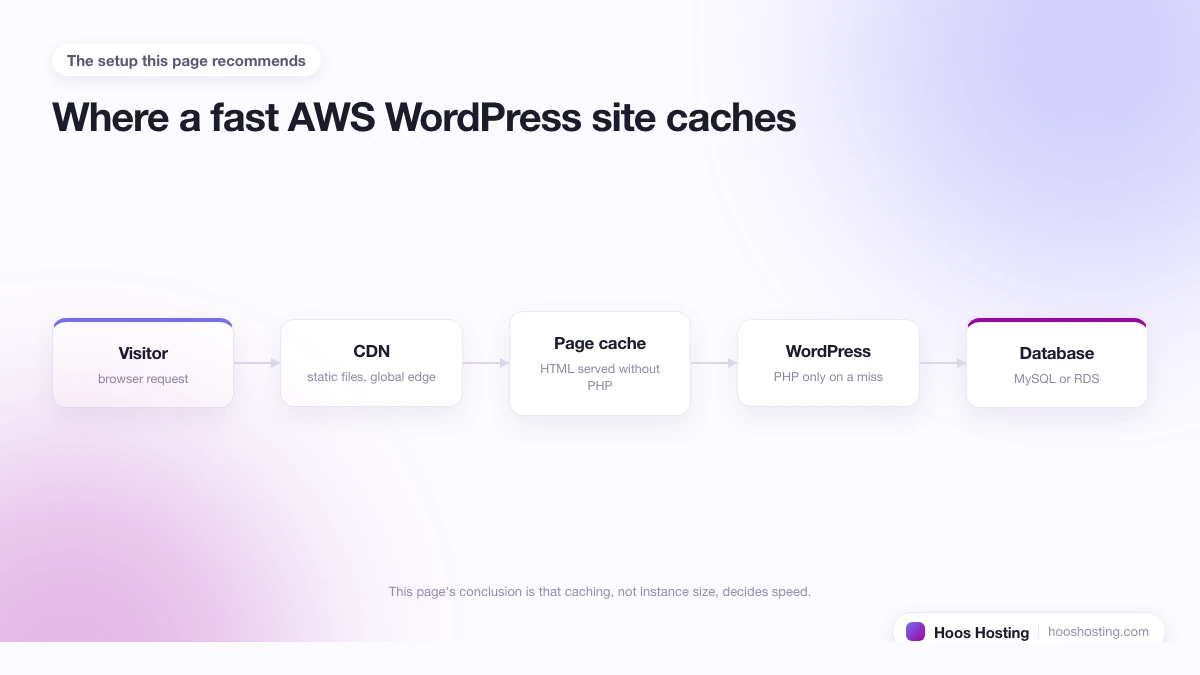
Static assets (images, CSS, JS) served from an edge node near each visitor cuts load time by 60 to 80 percent for visitors far from your datacenter. Cloudways CDN is a one-click add-on in the dashboard. Cloudflare is free and adds DNS-level DDoS protection as a bonus. Our guide to using Cloudflare with Cloudways covers the setup and the one configuration note to watch.
4. Upgrade PHP to 8.1 or 8.2
In Application Settings, older server configurations may default to PHP 7.4. PHP 8.x runs 10 to 20 percent faster on WordPress benchmarks. Test on a staging copy first, then apply to production. Most modern plugins are fully compatible; the exceptions are older payment gateway integrations and some legacy form builders.
These first-day changes are a starting point. For the complete set of speed improvements, including Varnish, Redis, and CDN setup, see our guide on how to make Cloudways faster for WordPress.
Cloudways Server Pricing: What to Budget
Comparing DigitalOcean, Vultr, AWS, and Google Cloud
Each infrastructure provider on Cloudways targets a different use case. DigitalOcean and Vultr offer the lowest entry pricing and the most predictable monthly costs, which makes them the default choice for WordPress blogs, small business sites, and early-stage WooCommerce stores. Akamai (formerly Linode) sits in a similar price range and is a solid alternative if you already use Akamai's CDN or edge network. AWS and Google Cloud instances start at a higher base price, around $36 per month compared to $14 for a DigitalOcean 1GB instance, and suit teams already running workloads on those platforms who want to keep their stack consolidated. For most sites moving off shared hosting, DigitalOcean or Vultr is the practical starting point, with AWS or Google Cloud as an option once the site grows into that cost bracket.
Cloudways charges for the underlying cloud server plus a management markup on top. The lowest entry point is a DigitalOcean 1GB RAM / 1 CPU instance at around $14 per month on the Flexible plan. Vultr and Akamai have similar entry pricing. AWS and Google Cloud instances start higher (around $36 per month) and make sense for sites already embedded in those ecosystems.
Most small WordPress sites (under 100k monthly visits) run comfortably on a 1-2 GB RAM DigitalOcean server. WooCommerce stores with active orders typically need 2-4 GB to handle checkout traffic without slow PHP worker queues. A $28/month DigitalOcean 2GB instance is a common starting point for established WordPress businesses moving off shared hosting.
Cloudways billing is hourly, so scaling up temporarily for a product launch or traffic spike costs only for the hours used. The Autonomous plan uses auto-scaling instead of manual sizing, which removes the guesswork but adds a different cost structure better suited to variable-traffic applications.
Common Migration Errors and Fixes
Plugin Stuck at "Migrating Database" for Over an Hour
Usually a connectivity timeout. Increase PHP max_execution_time on the source server, or fall back to a manual database export via phpMyAdmin or WP-CLI. Large databases with heavy WooCommerce order history are the most common trigger for this timeout.
White Screen After Migration
Almost always a memory limit or a plugin conflict. Rename the plugins folder via SFTP to disable everything, then re-enable plugins one by one to identify the conflicting plugin. Check the PHP error log in Cloudways Application Logs for the specific fatal error if the white screen persists after disabling plugins.
Login Redirect Loop
Caused by stale cookies or the WP_HOME / WP_SITEURL constants pointing at the wrong domain. Clear cookies, check wp-config.php for any define() calls overriding the dashboard URL, and look in the database options table for old siteurl entries.
If you are weighing Cloudways against alternatives before committing, the full Cloudways review covers pricing, support, and the platform's strengths and weaknesses. For ongoing backups, cron jobs, server monitoring, and a routine maintenance schedule, see our Cloudways maintenance guide. Once your site is live, our Cloudways performance and speed guide covers the caching stack, CDN choices, and server scaling. To take advantage of the free trial and managed migration, you can try Cloudways directly. If you encounter a 403 Forbidden error or broken plugin updates, see our guide to reset file permissions on Cloudways. Before making any significant configuration changes, see our step-by-step guide on how to back up a Cloudways application, which covers on-demand backups, scheduled backups, and what to do if a backup fails.