Amazon Web Services (AWS) powers a huge portion of the modern web, from Netflix to small WordPress blogs. It is the broadest cloud platform on the market and the most flexible way to host a website, but that flexibility comes with a real learning curve and a billing model that surprises people who expect a flat monthly fee. This guide covers how AWS hosting actually works, what it costs in practice, when to use Amazon Lightsail versus EC2, and the easier paths if you want AWS infrastructure without the AWS console.
What Is AWS Hosting?
Amazon Web Services launched in 2006 and is now the largest cloud infrastructure provider in the world, with over 100 availability zones across 30-plus geographic regions and more than 600 CloudFront edge locations for content delivery. "AWS hosting" is not one product. It is a label that covers several different services you can host a website on, each with a different price model and skill requirement.
The services that matter for web hosting are Amazon EC2 (raw virtual servers you configure yourself), Amazon Lightsail (fixed-price managed bundles with WordPress, LAMP and other one-click blueprints), Amazon S3 (object storage for files, images, and static sites), CloudFront (the global CDN), and Route 53 (DNS). Most websites end up using a combination: EC2 or Lightsail for the application, S3 and CloudFront for assets and caching, Route 53 for the domain. Reviewers consistently note that AWS is best for developers, startups, growing businesses, and advanced projects rather than first-time site owners, and that lines up with how the platform is priced and documented.
AWS Hosting Plans and Pricing
AWS does not have plans in the traditional shared-hosting sense. It has a catalog of services that each bill independently, and your monthly cost is the sum of everything you used. There are two practical entry points, and the price gap between them tells you a lot about who each one is for.
Amazon Lightsail is the fixed-price tier. Bundles include a virtual server, a static IP, a data transfer allowance, and DNS management, and they start at:
- $3.50/mo: 512 MB RAM, 1 vCPU, 20 GB SSD, 1 TB transfer
- $5/mo: 1 GB RAM, 2 vCPU, 40 GB SSD, 2 TB transfer
- $10/mo: 2 GB RAM, 2 vCPU, 60 GB SSD, 3 TB transfer
- $20/mo: 4 GB RAM, 2 vCPU, 80 GB SSD, 4 TB transfer
- $40 to $160/mo: higher RAM and CPU tiers up to 32 GB / 8 vCPU
Lightsail is the cheapest legitimate way to put a WordPress site on AWS infrastructure, and the WordPress blueprint pre-installs Apache, PHP, and MySQL on a Bitnami image so you can be live in under ten minutes.
Amazon EC2 is the metered tier. You pick an instance family and size, you pay by the hour or second, and you pay separately for storage (EBS), bandwidth out, snapshots, elastic IPs that sit unused, and any other AWS service you attach. A t3.micro instance running 24/7 is about $7.50 to $9/month before storage and bandwidth; a realistic small WordPress production setup with an EBS volume, snapshots, and modest bandwidth lands around $15 to $40/month. Bigger or busier sites scale up from there, and the true cost often exceeds advertised pricing because of bandwidth overages, snapshot storage fees, static IP charges for stopped instances, and the gravitational pull toward more expensive AWS services.
AWS does offer commitment discounts. Savings Plans cut compute costs 20 to 60% in exchange for a one or three year usage commitment, and Reserved Instances cut specific-instance costs 30 to 70% with the same commitment model. These matter once your bill is large enough that the math is worth doing.
There is a free tier that gives you 750 hours per month of t2.micro or t3.micro EC2 for the first 12 months of your account, plus 5 GB of S3, 15 GB of CloudFront, and 750 hours of RDS micro database. It is enough to host one small WordPress site for a year if you keep an eye on usage.
AWS Lightsail vs EC2: Which One for Your Site?
This is the question that decides whether your AWS experience is pleasant or painful. The honest answer is that Lightsail is the right choice for most websites, and EC2 is the right choice when you have outgrown Lightsail or have requirements Lightsail does not handle.
Pick Lightsail when you want a single website (or a small handful), predictable billing, one-click WordPress, LAMP, or Node.js, and a console that does not require you to learn IAM, VPC, security groups, and EBS volumes before you can deploy. Lightsail also makes it easy to upgrade later: you can take a snapshot of a Lightsail instance and use it to create an EC2 instance, so the choice is not permanent.
Pick EC2 when you need a specific instance type Lightsail does not offer (GPU, ARM, high-memory), when you need fine-grained networking like private subnets or VPN connections, when you are running multiple environments and want auto-scaling groups, or when you are already comfortable with the broader AWS console and want full access to every service. EC2 also makes sense when you are building something more than a website: APIs, background workers, containers, or microservices that need to talk to other AWS services through IAM roles.
One trap: a t3.micro EC2 is not automatically cheaper than the $5 Lightsail bundle once you add storage, bandwidth, and an elastic IP. Lightsail's value is the bundled allowance, not the raw compute price.
AWS Performance and Global Network
AWS has more global infrastructure than any other cloud provider, with over 100 availability zones across 30-plus regions and 600-plus CloudFront edge locations. In practical terms, you can put a server inside about 50 ms of almost any internet user on earth, and CloudFront caches static assets even closer than that. Independent reviews report connection times around 300 milliseconds at worst and around 20 milliseconds at best depending on the region you pick.
For a single WordPress site, the difference between AWS performance and a quality managed host is small until your traffic is large or your audience is geographically spread. AWS starts to pull ahead when you front everything with CloudFront, route DNS through Route 53 with latency-based routing, and offload static assets to S3. That stack is fast and cheap at scale, but it is also where AWS starts to feel like a platform you have to learn rather than a hosting product you can use.
AWS for WordPress
You have three real options for running WordPress on AWS, in order of difficulty. The AWS WordPress hosting guide compares all three on cost, setup and speed.
For a detailed look at AWS hosting pricing, Lightsail performance, and whether to use raw AWS or Cloudways, see our Amazon Web Services review.
Lightsail WordPress blueprint: the simplest path. From the Lightsail console you choose a Linux instance, pick the WordPress blueprint, and within a few minutes you have a server running Apache, PHP, and MySQL with WordPress pre-installed. Log in, change the admin password, point your domain at the static IP, and you are live. This is the closest AWS comes to one-click hosting.
EC2 plus RDS: the production-grade path. You launch an EC2 instance, install LAMP or Bitnami yourself (or use the AWS Marketplace), create a separate RDS MySQL instance for the database, attach an Elastic IP, and configure CloudFront in front. This is more work, but you get isolated database backups, easier scaling, and proper environment separation.
Cloudways on AWS: the managed path. The Cloudways hosting guide covers how Cloudways provisions AWS servers, installs an optimized WordPress stack (Apache, Nginx, Varnish, Redis), and gives you a friendly dashboard instead of the AWS console. You pay a Cloudways margin on top of the raw AWS price (from $38/month for a 2 GB AWS server) but you skip every system-administration step. For most non-developer WordPress site owners, this is the most realistic way to actually use AWS infrastructure.
Setting Up AWS Billing Alerts
The most common AWS complaint is bill shock: unexpected charges from services you forgot were running, data transfer overages you did not anticipate, or elastic IPs left attached to stopped instances. Setting up billing alerts costs five minutes and protects you from every scenario where your bill would otherwise be a surprise.
Set a Monthly Budget in AWS Budgets
Go to the AWS Billing console, click Budgets in the left menu, and create a new budget. Choose "Cost budget," set the time period to Monthly, and enter your expected spend. For a Lightsail-only setup that should cost $5 to $10/month, set the threshold at $15 so you get an alert if anything unexpected runs up a charge. AWS emails you when your actual or forecasted spend crosses the threshold. This is the first protection against runaway costs.
Create a CloudWatch Billing Alarm
In CloudWatch, go to Alarms > All Alarms > Create Alarm. Select Billing as the metric namespace, then EstimatedCharges. Set the condition to "Greater than" and enter a dollar amount slightly above your expected monthly spend. Choose SNS (Simple Notification Service) as the action and create a topic that sends email to your address. This alarm fires in near-real-time rather than waiting for the daily budget check, so you catch unexpected charges within hours rather than at month-end.
Enable Free Tier Usage Alerts
In the AWS Billing preferences, turn on "Receive Free Tier Usage Alerts." AWS emails you when you are approaching or have exceeded free tier limits. This is especially useful in the first 12 months when you want to keep the free tier intact. EC2, RDS, and CloudFront all have separate free tier limits; exceeding any one of them starts billing immediately.
What to Watch on a Lightsail Account
Lightsail's fixed pricing covers the bundled data transfer allowance. The most common billing surprise on Lightsail is exceeding the transfer cap: a $5 instance includes 1 TB/month, and overage charges $0.09/GB. A WordPress site that serves large images without a CDN can hit that limit with modest traffic. Enable Lightsail's built-in CloudFront distribution (free in Lightsail) to offload static assets and protect your transfer budget.
Common AWS Mistakes for WordPress Site Owners
AWS is flexible enough to accommodate almost any configuration, which means it is also flexible enough to cost more than you expect or perform worse than it should. These are the mistakes first-time AWS WordPress users make most often.
- Not setting a billing alert before anything else. AWS billing is metered and immediate. Run one EC2 instance by accident for a month, leave a NAT gateway running, or exceed your CloudFront free tier, and the bill arrives 30 days later. Set budgets and CloudWatch alarms on day one, before you launch anything.
- Picking a region without checking latency. AWS has many regions, and picking the wrong one adds 100 to 200 ms to every page load for your primary audience. Use a latency-testing tool (cloudping.info or awsspeedtest.com) before you create your first instance. Moving a Lightsail instance to a different region requires a snapshot-and-restore operation; it is not a drag-and-drop.
- Leaving elastic IPs unattached to a running instance. AWS charges $0.005/hour ($3.60/month) for any elastic IP that is not associated with a running instance. If you stop or terminate an instance but forget to release its elastic IP, the charge accumulates silently. Always release elastic IPs when you no longer need them.
- Using EC2 when Lightsail is cheaper and simpler. A t3.micro EC2 instance ($7.50 to $9/month) plus a 20 GB EBS volume ($2/month) plus an elastic IP ($3.60/month if stopped) plus basic bandwidth costs more than a $5 Lightsail bundle that includes all of those. For a single WordPress site that does not need EC2-specific features, start with Lightsail.
- Not taking a Lightsail snapshot before making changes. Lightsail has no undo button. If a plugin update breaks the site or a configuration change causes errors, you need a snapshot to roll back. Manual snapshots cost $0.05/GB/month; for a 20 GB instance, that is $1/month. Take one before any significant change.
- Forgetting that the free tier is metered, not unlimited. The 750 hours/month of free EC2 is exactly 750 hours. Run two t2.micro instances simultaneously and you burn through the free tier in 15 days, not 30. The free tier is designed for one active instance at a time at the micro tier. Running anything else in parallel starts billing immediately.
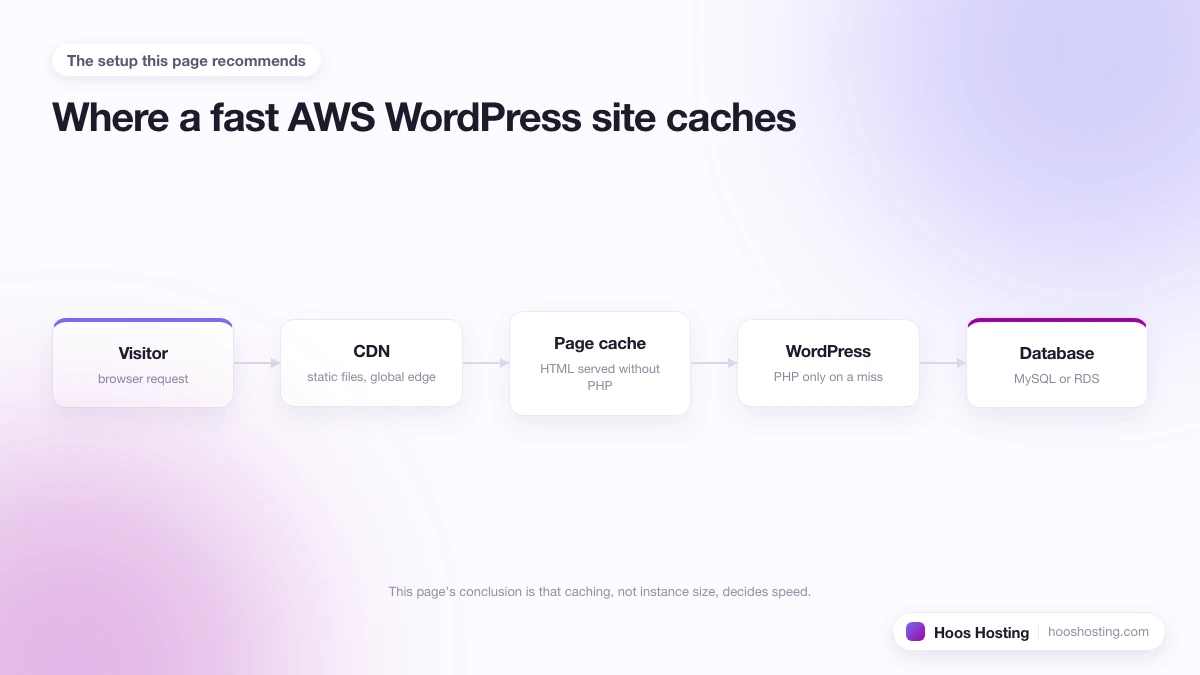
- Skipping CloudFront on a Lightsail WordPress site. Lightsail includes a free CloudFront distribution. Most new users skip it because it is an extra step. Enabling CloudFront cuts TTFB for international visitors by 50 to 80%, protects your transfer budget by caching static assets at the edge, and adds a free layer of DDoS protection. It takes about 10 minutes to configure and has no recurring cost for Lightsail users.
AWS Support: Free vs Paid Tiers
AWS support is tiered, and the free tier is genuinely free but genuinely limited. Basic Support comes with every account and gives you account and billing help, documentation, the AWS forums, and the Personal Health Dashboard. It does not include technical help with your application.
For technical support you pay a monthly fee or a percentage of your AWS bill: Developer Support starts at $29/month, Business Support at $100/month, Enterprise On-Ramp at $5,500/month, and Enterprise at $15,000/month. For a small WordPress site this is overkill. Most small site owners rely on documentation, the AWS knowledge center, and community answers, which is part of why beginners struggle, since the platform has a steep learning curve and there is no friendly chat window when something breaks.
AWS Pros and Cons
What AWS gets right:
- Largest global infrastructure footprint of any cloud provider
- Genuinely scalable from a $3.50 Lightsail instance to a multi-region enterprise app
- 12-month free tier that covers a small site
- Lightsail provides simple, fixed-price entry that hides most AWS complexity
- Deep ecosystem: databases, queues, serverless, machine learning, all under one billing umbrella
- Reserved Instances and Savings Plans give large discounts at scale
What AWS gets wrong:
- The EC2 console and full AWS dashboard are intimidating for non-developers
- Per-resource billing causes bill shock, since bandwidth, snapshots, static IPs, and idle resources add up
- Technical support costs extra and starts at $29/month
- No traditional cPanel; you manage Linux yourself unless you use Lightsail or Cloudways
- WordPress on raw AWS is a project, not a product
- Pricing is hard to estimate in advance
AWS Review
For a full breakdown of AWS as a hosting platform, with detail on Lightsail, EC2, real pricing examples, and how AWS compares to Google Cloud and Azure, read the Amazon Web Services review. The review covers when AWS is worth the complexity and when a managed alternative like Cloudways or a traditional host serves you better.
AWS vs the Alternatives
AWS vs Google Cloud: Google Cloud Platform is the closest like-for-like comparison and is what powers managed WordPress hosts like Kinsta. GCP is generally seen as easier to use than AWS at the console level and competitive on price for compute, while AWS leads on service breadth and global footprint. See the Google Cloud Platform review for a deeper comparison, or the GCP hosting guide for an overview of pricing tiers, WordPress deployment paths, and when a managed layer is the better trade.
AWS vs Cloudways: Cloudways is not really an alternative to AWS, it is a way to use AWS. The Cloudways hosting guide explains how the same EC2 instance type you would launch yourself ends up costing more on Cloudways (around $38/month for 2 GB) but arrives pre-configured with a fast WordPress stack and a dashboard you can actually use without reading documentation for a week.
AWS vs managed WordPress hosts: If your only goal is to run a WordPress site, a managed host removes almost every reason to use AWS directly. The Kinsta hosting guide is a good example. Kinsta runs on Google Cloud, handles every system administration task, and starts at a fixed monthly price. You pay more per resource but you do not pay for the time AWS takes to learn.
AWS vs traditional shared/cloud hosts: For most personal sites, small business sites, and blogs, a host like Hostinger is dramatically cheaper and easier than anything on AWS. The Hostinger guide covers when that trade-off is the right one.
Is AWS Hosting Right for You?
AWS is a good fit when:
- You are a developer or have one on staff
- You need services beyond a single web server (queues, lambdas, databases, machine learning)
- Your traffic patterns are unpredictable and you need auto-scaling
- You expect to grow beyond a single site or single region
- You are comfortable monitoring billing actively
AWS is not a good fit when:
- You want one flat price every month with no surprises
- You want a one-click installer and a chat window for support
- You are running a single WordPress site and value your time over your hosting bill
- You do not want to learn IAM, VPC, security groups, and EBS
For the second group, Lightsail covers a lot of the gap and Cloudways covers the rest.
How to Get Started with AWS
If you decide AWS is the right call, the smoothest first project is a Lightsail WordPress instance. The steps are:
- Create an AWS account at aws.amazon.com. You will need a credit card even for the free tier.
- Open the Lightsail console and click Create Instance.
- Pick a region close to your audience.
- Choose Linux/Unix, then the WordPress blueprint.
- Pick the $5/month bundle as a sensible starting point.
- Name the instance and create it. It takes about a minute.
- From the instance page, attach a static IP so the address does not change.
- Point your domain at the static IP (Lightsail has a built-in DNS zone editor).
- SSH in or use the browser-based terminal to grab the WordPress admin password from /home/bitnami/bitnami_credentials.
For the full walkthrough, with the SSL command and the domain and banner steps spelled out, follow our guide on how to install WordPress on AWS Lightsail.
If you would rather skip the AWS console entirely and let someone else handle the server stack while still using AWS infrastructure, the easier path is to start a Cloudways trial, pick AWS as your provider, and choose a server size. Cloudways will provision the EC2 instance, install its optimized stack, and hand you a dashboard. You pay more per server, but you skip the AWS learning curve. For most WordPress site owners this is the better trade.