
Running WordPress on Amazon Web Services means picking a path before you pick a plan. AWS is not a single hosting product, so the same site can live on a fixed-price Lightsail server, a hand-built EC2 and RDS stack, or a managed service like Cloudways that runs on AWS hardware and handles the server for you. Each path has a different price, a different amount of setup, and a different list of things you own afterward. This guide covers the three options, what each one really costs per month, the fees that catch WordPress owners by surprise, and the setup work (SSL, caching, backups, domains) that decides whether your site is fast or just expensive.
The Three Ways to Host WordPress on AWS
Almost every tutorial online shows one route and treats it as the route. In reality there are three, and the right one depends entirely on how much server work you want to do yourself.
1. Amazon Lightsail: the simple path
Lightsail is AWS's fixed-price tier. You pick the WordPress blueprint, choose a bundle starting at $3.50 per month, and a few minutes later you have a Linux server running Apache, MySQL, PHP and a pre-installed Bitnami WordPress stack. You get a static IP and a built-in DNS zone editor. The trade is that you still own WordPress updates, caching setup, and SSL renewal. For a single site run by someone willing to learn a little, Lightsail is the cheapest honest way onto AWS infrastructure. Our step-by-step guide to installing WordPress on AWS Lightsail walks through the full setup, including free SSL and pointing a domain.
2. EC2 plus RDS: the control path
This is the setup most "install WordPress on AWS" articles describe. You launch an EC2 virtual server, install the stack yourself (or from a Bitnami image), create a separate RDS MySQL database, attach an Elastic IP, and usually put CloudFront in front. It gives you isolated database backups, proper scaling, and access to every AWS service. It also costs more and takes real time: a small production setup with an EBS volume, snapshots and modest bandwidth lands around $15 to $40 per month, and the console expects you to understand security groups, IAM and VPC before you deploy.
3. Cloudways on AWS: the managed path
Cloudways runs a managed layer on top of AWS. You choose AWS as the provider and a server size, and Cloudways provisions the instance, installs a tuned WordPress stack (Apache, Nginx, Varnish, Redis, Breeze), and hands you a dashboard instead of the AWS console. Pricing starts around $36 to $38 per month for a 2 GB AWS server, which is more than raw Lightsail at the same spec, but you skip every system-administration step. The Cloudways hosting guide covers how the managed layer works in detail. For most non-developer WordPress owners, this is the realistic way to actually use AWS.
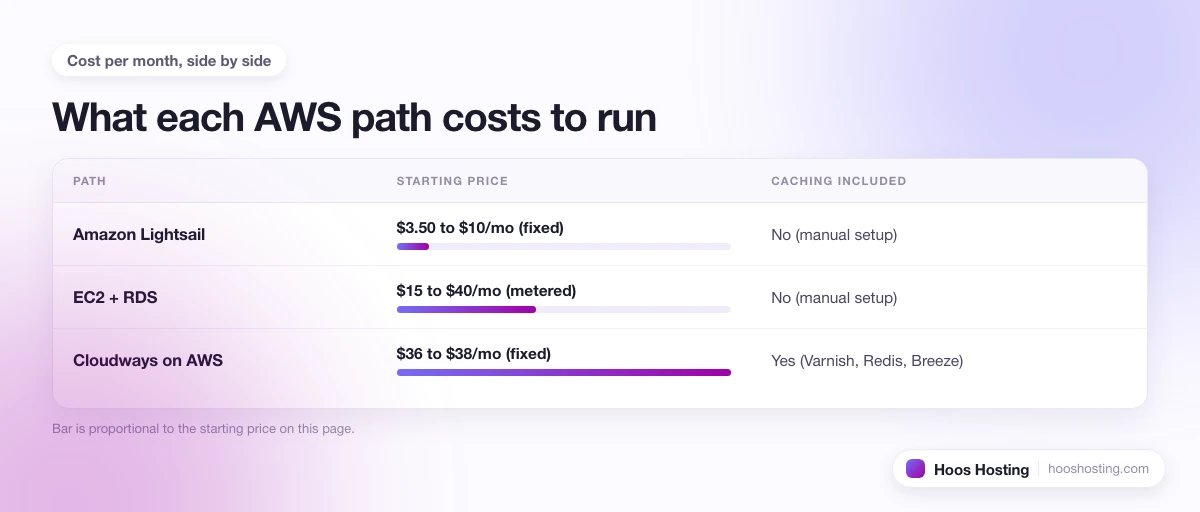
What Each Path Costs Per Month
Starting prices only tell half the story, because what you pay also buys (or fails to buy) the management work. Here is how the three paths line up for a standard WordPress site.
| Path | Starting price | Who manages the server | Caching included | Support | Best for |
|---|---|---|---|---|---|
| Amazon Lightsail | $3.50 to $10/mo (fixed) | You | No (manual setup) | Paid add-on from $29/mo | One small site, tight budget, some Linux comfort |
| EC2 + RDS | $15 to $40/mo (metered) | You | No (manual setup) | Paid add-on from $29/mo | Developers who need full AWS control and scaling |
| Cloudways on AWS | $36 to $38/mo (fixed) | Cloudways | Yes (Varnish, Redis, Breeze) | 24/7 included | Business and client sites that value time over cost |
Whichever path you choose, set a billing alert before you launch anything. AWS bills per resource and the charges arrive at the end of the month, so the single best habit is a monthly budget plus a CloudWatch alarm on day one. The full walkthrough for that is in the AWS hosting guide, along with Lightsail versus EC2 pricing in more depth.
The Hidden Costs WordPress Owners Hit on AWS
Bill shock is the most common AWS complaint, and for WordPress sites it almost always comes from the same short list of charges that are easy to forget:
- Data transfer overage. Outbound transfer costs $0.09 per GB once you pass the free allowance. An image-heavy post that starts ranking can burn through a free tier in days, so put a CDN in front early.
- Elastic IP on a stopped instance. AWS charges about $3.60 per month for an Elastic IP that is not attached to a running server. Stop an EC2 instance but forget its IP and the meter keeps running silently.
- EBS snapshot storage. Automated snapshots store in S3 at $0.05 per GB per month. Weekly snapshots of a 30 GB volume add up faster than people expect.
- Free-tier metering. The 750 free EC2 hours per month cover one micro instance at a time. Run two in parallel and you exhaust the allowance in roughly 15 days, after which billing starts.
- Lightsail transfer cap. Lightsail's fixed price includes a bundled transfer allowance (1 TB on the $5 plan). Go over it and overage charges at $0.09 per GB, which a site serving large images without a CDN can trigger on modest traffic.
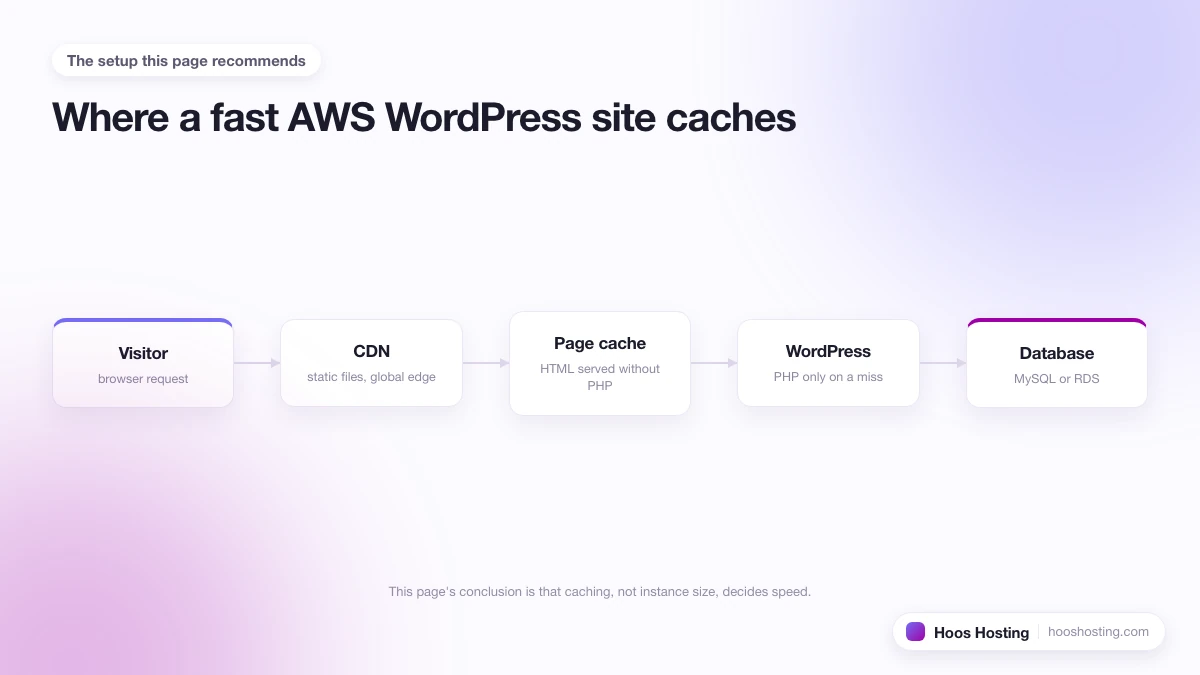
Performance: Caching Decides Everything
The underlying AWS hardware is fast, but WordPress is a dynamic PHP application, so raw speed depends almost entirely on your caching layer. On an uncached Lightsail instance, a typical WordPress site produces a time to first byte of 800 to 1,200 milliseconds, because every request runs PHP and queries MySQL directly. That lands in the "needs improvement" range on Core Web Vitals.
Add a full-page cache plugin such as WP Super Cache, W3 Total Cache or WP Rocket and cached pages drop to the 200 to 600 millisecond range. Put CloudFront or Cloudflare in front and international load times improve further while static assets serve from the edge. Cloudways on AWS ships Varnish, Redis and OPcache pre-configured, so the same AWS hardware routinely serves cached pages under 200 milliseconds with no manual tuning. On raw Lightsail you build that stack yourself; on Cloudways it is ready on day one.
SSL, Domains and Backups
These three jobs are where a managed path quietly earns its price, because on raw AWS each one is a manual task.
Adding SSL
On a Lightsail Bitnami stack, the built-in bncert-tool installs and auto-renews a free Let's Encrypt certificate over SSH in a couple of minutes. You can also use AWS Certificate Manager when you front the site with CloudFront. Our step-by-step guide to setting up free SSL on AWS Lightsail walks through the tool, the firewall port it needs, and forcing HTTPS across WordPress. Managed hosts handle issuing and renewal for you, so there is nothing to configure.
Pointing your domain
Attach a static IP to your instance so the address does not change on restart, then create an A record pointing your domain at it. Lightsail has a DNS zone editor built in, and Route 53 handles DNS at the account level with latency-based routing if you need it.
Backups
Lightsail snapshots are a paid add-on, not a default, at $0.05 per GB per month, and a restore creates a new instance rather than overwriting the current one. The safe habit is a manual snapshot before any significant change, since there is no undo button. Cloudways includes automated backups on a schedule with one-click restore, which removes the step entirely.
Migrating an Existing WordPress Site to AWS
Moving a live site onto AWS follows the same shape whichever path you pick. Export the site with a migration plugin such as All-in-One WP Migration or UpdraftPlus, stand up the new WordPress install on Lightsail, EC2 or Cloudways, import the archive, test the staging copy on the raw IP, then switch your DNS A record to the new server. Cloudways offers a free migration plugin that automates most of this, which is one more reason the managed path appeals to people moving an established site rather than starting fresh.
Which Path Is Right for You?
The decision comes down to how you value your time against your hosting bill:
- Choose Lightsail for a single site on a tight budget when you are comfortable installing a caching plugin and running an SSL command over SSH.
- Choose EC2 plus RDS when you are a developer, need AWS services beyond a web server, or expect to scale across regions and want full control.
- Choose Cloudways on AWS when you want AWS performance without the console, especially for business or client sites where downtime and admin time are expensive.
If you want AWS infrastructure without ever opening the AWS console, the smoothest route is to start a Cloudways trial, select AWS as your provider, and pick a server size. Cloudways provisions the server and installs the tuned stack for you. For the full platform breakdown, including Lightsail against EC2 and real pricing examples, read the Amazon Web Services review.