Kinsta makes WordPress fast by default: every plan ships with edge caching from over 260 Cloudflare locations, full-page server caching tuned for WordPress, and a free APM tool that traces which plugins and queries slow your site down. The harder question is when to add Redis object cache (a $100 per month upgrade), when to add PHP workers, and the right order to use Kinsta's debugging tools. This guide walks the three-layer caching model, the diagnostic workflow, and the upgrade decisions in the order they actually come up. If you are still moving onto Kinsta, do the optimization work after the cutover finishes, not during; the setup and migration guide covers the cutover sequence and the gotchas that change which optimization steps you need next.
Before making any performance changes, secure your MyKinsta account with 2FA if you have not already. An unsecured dashboard is the easiest way to lose access to all your optimization work. These steps also assume your site is already live on Kinsta; if you are still in the process of migrating to Kinsta, complete that first.
What This Guide Covers
This guide covers WordPress performance and optimization for Kinsta on Hoos Hosting. It explains the three caching layers that ship with every Kinsta plan, the one paid layer (Redis) and when it is worth buying, how to read the APM tool to find slow code, and how to safely turn on WordPress debug mode in production. For the full host overview (plans, pricing, MyKinsta dashboard, support model), start with the Kinsta hosting guide.
How to Run a Performance Baseline Test on Kinsta
Before making any optimization changes, measure where your site actually stands. Without a baseline, you cannot know whether a change helped. The workflow that takes ten minutes and gives you actionable numbers:
- Run GTmetrix from a region near your audience. Test from the same datacenter region as your Kinsta site. GTmetrix’s free tier lets you pick test location. Note the Largest Contentful Paint (LCP) and Total Blocking Time (TBT). LCP under 2.5 seconds is the Google Core Web Vitals threshold; TBT under 200ms is the interactive responsiveness target.
- Check the Kinsta cache hit rate in MyKinsta. Go to your site’s Analytics tab and look at the cache breakdown. A hit rate above 80 percent means most visitors are served cached HTML without touching PHP. If the rate is below 50 percent, a plugin may be flushing cache on every request, or too many visitors are logged in and bypassing page cache entirely.
- Run the APM tool once, even if nothing feels slow. Enable APM for ten minutes during a normal traffic window. Sort plugins by Total Duration. Any plugin showing over 100ms average transaction time is a candidate for replacement or configuration review. This is the single most actionable performance signal on Kinsta.
- Check Google Search Console’s Core Web Vitals report. GSC shows real-user data aggregated over 28 days. GTmetrix shows lab data from one test. Real-user Core Web Vitals often differ from lab results due to mobile performance, image loading on slower connections, or third-party scripts such as live chat widgets or analytics tags.
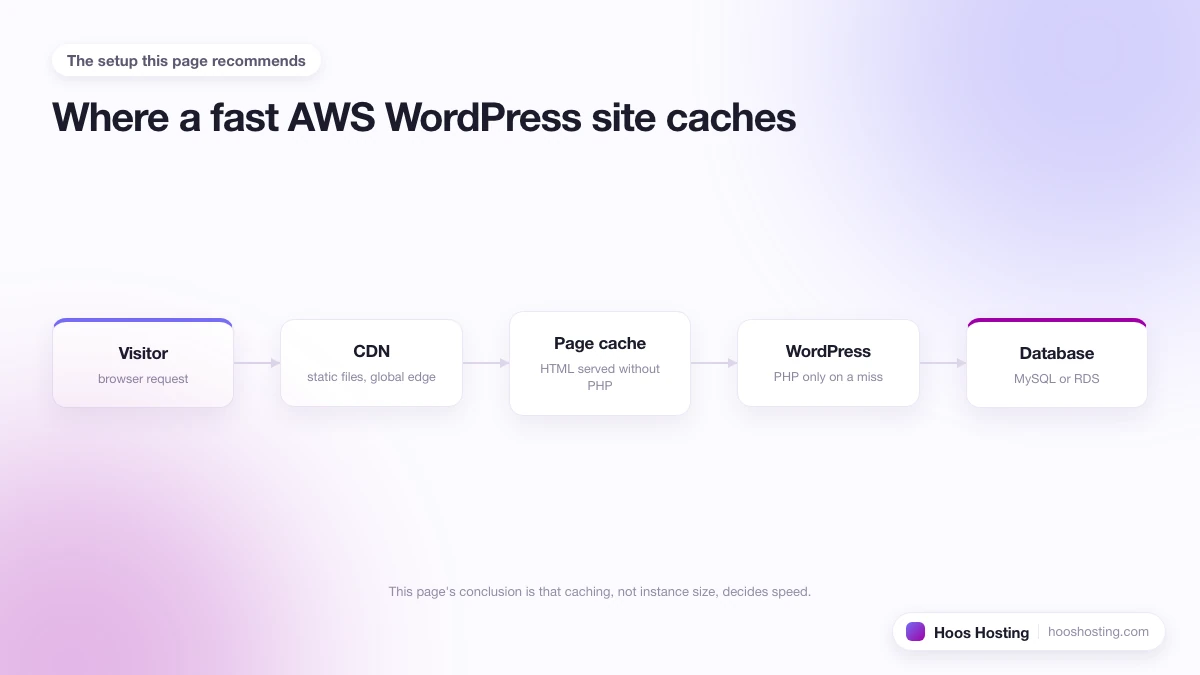
Kinsta's Three-Layer Caching Architecture
Most performance posts treat caching as one thing. Kinsta runs three distinct layers, and they answer different requests. Knowing which layer handles what tells you what to fix when a page is slow.
- Layer 1: Edge cache (Kinsta CDN). Cached static assets (images, CSS, JavaScript) served from the Cloudflare edge nearest the visitor. Hit rates above 90 percent are normal once a site has warmed up. Misses fall through to the origin.
- Layer 2: Server page cache. Full rendered HTML stored at the server level, served to non-logged-in visitors without ever running PHP or hitting the database. This is the layer that makes a Kinsta site feel "fast everywhere" on first paint. Logged-in users (admins, WooCommerce customers, members) skip this layer.
- Layer 3: Object cache (Redis, add-on). Database query results held in memory inside a dedicated 2 GB Redis instance in the same container as WordPress. Only activates for traffic that bypasses Layer 2 (logged-in users, dynamic pages, AJAX). Sub-millisecond round trips.
The rule of thumb: Layer 1 fixes slow images, Layer 2 fixes slow first paints for guests, Layer 3 fixes slow dashboards and checkout flows for logged-in users.
Turning On the Kinsta CDN (Free)
The Kinsta CDN is included on every plan and adds no extra cost. It is off by default on new sites, which surprises owners moving from hosts where CDN is opt-out rather than opt-in. The setup is three clicks in MyKinsta plus a wait for DNS propagation. The full step-by-step lives in how to enable the Kinsta CDN on WordPress. Once it is on, Kinsta also auto-converts images to WebP for browsers that support the format, which usually shaves 20 to 40 percent off image weight without any plugin work on your end.
One thing worth knowing before you turn it on: if you already use Cloudflare on your domain (the orange-cloud DNS proxy), the Kinsta CDN integration takes the same path and the two need a small coordination step. The related Kinsta guide covers Kinsta's Cloudflare integration on an existing domain so the two CDNs cooperate instead of fighting. For the full account, ownership, and domain management workflow on Kinsta, the Kinsta account and domain management guide covers it in one place.
Image Optimization on Kinsta: Beyond Auto-WebP
Kinsta auto-converts images to WebP for supporting browsers, which handles the format problem. Three image issues that WebP conversion does not fix:
- Oversized originals. Uploading a 4000px photo when your content column is 800px wide means browsers download five times more pixels than they display. Resize images to the maximum display size before uploading. For existing media libraries, Imagify or ShortPixel can bulk-process and resize in one pass.
- Missing lazy loading. WordPress has had native lazy loading since version 5.5 (the
loading="lazy"attribute on img tags). Check that your theme and any image blocks you use are not overriding the default. Images below the fold that load eagerly inflate your LCP score even if the images are small. - Broken responsive image sizes. WordPress generates multiple sizes per upload and uses the sizes attribute so browsers request the right resolution for each device. If your theme forces a full-size image source everywhere, mobile visitors receive desktop-width files. Check your theme’s image size declarations or use Regenerate Thumbnails after switching themes to rebuild the size set.
When to Add Redis Object Cache (Paid)
Redis is the only optimization layer Kinsta charges extra for. The cost is $100 per month for the standard 2 GB instance. That is not a small line item, so it pays to know whether your site actually needs it before turning it on.
Redis only kicks in when a request bypasses the server page cache. For a static brochure site or a low-traffic blog where almost every visitor is anonymous, the page cache (Layer 2) handles 95 percent of requests and Redis adds nothing. The math changes for three site types:
- WooCommerce stores serving more than a few hundred orders a month. Every checkout, every cart update, and the My Account area all hit PHP and the database. Redis cuts those query times from tens of milliseconds to microseconds.
- Membership and LMS sites (MemberPress, LearnDash, Restrict Content Pro, BuddyBoss). Every logged-in visitor bypasses page cache, so without Redis every page-load runs the full WordPress query set.
- WordPress dashboards under heavy authoring. Newsrooms with multiple writers, agencies with shared client logins, or anyone who has felt wp-admin grind to a halt during edits.
The setup itself is one click after Kinsta provisions the instance. The full walkthrough including the WordPress plugin pairing and the post-enable verification step is in how to use Redis object cache on WordPress via Kinsta.
Diagnosing Performance with the Kinsta APM Tool
Kinsta APM is the diagnostic layer that tells you what to actually fix. It is free on every plan and replaces a paid New Relic or Query Monitor setup for most cases. APM records every PHP transaction, every MySQL query, and every external HTTP call your site makes, with timings broken down by plugin, theme, and core WordPress hooks.
The right workflow is reactive, not always-on. Turn APM on for the period you are debugging, capture the data, then turn it off. Kinsta documents this directly: the APM agent adds a small CPU and RAM cost, so leaving it running on a production site is paying a performance tax to measure performance. The five-step debug pattern that works:
- Enable APM from MyKinsta (Sites > your site > APM). It takes a minute to start collecting.
- Reproduce the slow request. Visit the slow page, click the slow admin action, run the slow checkout. APM captures a transaction trace.
- Open the WordPress tab. Sort plugins by "Total duration" descending. The plugin at the top is almost always the culprit; the second one is occasionally the real cause.
- Confirm by deactivation. Disable the suspect plugin (use staging if it is critical), reproduce the request, and check the trace again. A clean trace confirms the diagnosis.
- Turn APM off once you have the answer. The data stays available for 14 days even after the agent is disabled.
The full walkthrough including how to read the database query tab and the external HTTP calls tab (for sites that integrate with Stripe, ConvertKit, or remote APIs that occasionally time out) is in the dedicated Kinsta APM tool guide.
Debugging WordPress Errors Safely on Kinsta
When APM points to a plugin and the plugin's own logs are not enough, you need WordPress debug mode. Editing wp-config.php on a live site to flip WP_DEBUG is the old way, and it is risky: a typo crashes the site and the debug output can leak to visitors. Kinsta exposes debug mode as a toggle in MyKinsta so neither risk applies. Logs land in a dedicated tab, errors stay invisible to your visitors, and turning debug off again is one click. The how-to walks through both the MyKinsta toggle path and the wp-config path for users who prefer it: how to enable WordPress debug mode in MyKinsta.
WooCommerce and Logged-In User Performance on Kinsta
Kinsta's server page cache (Layer 2) only serves cached HTML to logged-out visitors with no active session cookies. Any visitor who has added something to the cart, is logged into a WordPress account, or has an active WooCommerce session bypasses page cache entirely and runs through PHP on every request. For a static blog, this rarely matters. For a WooCommerce store, it means every active shopper is an uncached PHP hit.
Kinsta automatically excludes the WooCommerce cart page, checkout page, and My Account area from page caching. You do not need a separate caching exclusion plugin to handle this; the exclusions are built into the server configuration. But automatic exclusions mean those pages always cost PHP and database time, which is where Redis and PHP worker sizing matter most for stores.
Three adjustments reduce that cost for WooCommerce sites on Kinsta:
- Add Redis object cache. Logged-in users bypass page cache but still benefit from Redis. Database query times drop from 10 to 100ms per query to sub-millisecond. A WooCommerce checkout that runs 20 or more database queries sees a noticeable difference. The full setup is in how to use Redis object cache on Kinsta.
- Pre-warm your cache after deployments. Kinsta does not auto-warm the page cache after you push from staging or clear after a plugin update. The first real visitor to each page after a cache clear runs uncached. For high-traffic pages, run a cache warmer (WP Rocket has one; so does Cache Warmer plugin) immediately after any cache purge so real visitors do not all hit PHP simultaneously.
- Right-size PHP workers for checkout concurrency. Two PHP workers (Starter plan) is a real bottleneck during a flash sale when 50 customers are on checkout simultaneously. Use the APM tool to confirm whether slow response times come from slow PHP execution (a plugin or query problem) or from workers queuing requests (a capacity problem). The fix is different for each: slow PHP needs a code fix, queued workers need a plan upgrade.
When WooCommerce traffic on Kinsta pushes a site toward its plan limits, MyKinsta sends a resource warning before the site degrades. See our guide on how to manage MyKinsta notifications to ensure the right people on your team receive resource alerts before visitors notice a slowdown.
Cache Exclusions You Should Know
Kinsta's page cache excludes specific request patterns automatically. Understanding what falls outside the cache tells you where your PHP worker budget is actually spent and what Redis is protecting.
- Logged-in users: Any visitor with a WordPress authentication cookie (editors, admins, WooCommerce customer accounts) gets a freshly generated page on every request.
- Cart and checkout: WooCommerce cart cookie holders bypass cache. Kinsta excludes these at the server level, not the plugin level.
- AJAX requests: Dynamic WordPress AJAX calls (admin-ajax.php and REST API) are never served from page cache.
- Query string parameters: Most URLs with parameters (?s=search, ?ref=source) bypass or break page cache. UTM parameters added by advertising campaigns are a common cause of unexpectedly low cache hit rates.
- Pages explicitly excluded: You can add URL patterns to the cache exclusion list from MyKinsta under Cache > Exclusions. Useful for pages like login forms, member dashboards, or personalized landing pages.
The practical implication for reading analytics: Kinsta's cache hit rate in the dashboard measures the percentage of cacheable requests that were served from cache, not the percentage of all traffic. WooCommerce checkout, WordPress admin, and dynamic AJAX all fall outside the cacheable pool and always show as misses. A 95 percent hit rate on a WooCommerce site is excellent; a 45 percent hit rate on the same site may be completely normal if half your traffic is logged-in customers.
PHP Workers and When to Upgrade the Plan
PHP workers are the concurrent request handlers on your Kinsta plan. Starter and Pro plans ship with 2 workers each, Business plans usually 4, Enterprise 8 to 12. A worker is busy whenever it is generating an uncached page for a visitor. If you have 2 workers and three guests hit dynamic pages at once, the third visitor waits in queue.
Before upgrading your plan to get more workers, confirm that is actually the bottleneck. The three-step diagnostic:
- Check for slow code first. In the APM “Slow requests” view, look at whether average request time is high (over 1 second is slow code) or whether individual requests are fast but the queue wait is long (workers problem).
- Check your page cache hit rate. If logged-in users drive most of your traffic and bypass the page cache, adding Redis (not more workers) is usually the right fix. Redis cuts database query time so each worker finishes faster and frees up for the next request.
- Scale if the evidence points there. If requests are genuinely queuing despite a solid cache hit rate and no slow-plugin culprit, upgrading plan tier is the right call. Moving from 2 to 4 PHP workers typically handles 2 to 3 times the concurrent uncached traffic.
Most sites that feel slow on the Starter plan are running one or two badly-written plugins, not running out of workers. Fixing the plugin gives you headroom to stay on the cheaper plan. The full plan-pricing breakdown is in the Kinsta hosting guide. For enabling Redis Object Cache to speed up WooCommerce and membership pages on Kinsta, see our guide on how to use Redis Object Cache via Kinsta. To trace slow PHP transactions and identify the exact plugin or query causing the bottleneck, use the Kinsta APM tool.