Cloudways is one of the faster managed WordPress hosts out of the box, but most accounts leave 30 to 50 percent of the available speed on the table because the caching layers are off by default or misconfigured. This guide explains the full stack (Varnish, Memcached, Redis, Breeze, Cloudflare), shows you what each layer actually does, and points to the step-by-step walkthroughs for the hands-on steps.
How Cloudways Reaches Its Baseline Speed
Cloudways' speed comes from three structural choices that shared hosts cannot match. Each application runs on dedicated server resources with no neighbour competing for CPU. The stack ships with PHP-FPM, NGINX or Apache, and MariaDB tuned for WordPress. Every server also has Varnish, Memcached, and Redis pre-installed at the operating-system level rather than as WordPress plugins. The full provider context, including how DigitalOcean, Vultr, AWS, GCP, and Linode compare on price and server locations, is in our Cloudways hosting guide and our Cloudways provider comparison; this page focuses on the optimisation work you can do on top of that baseline.
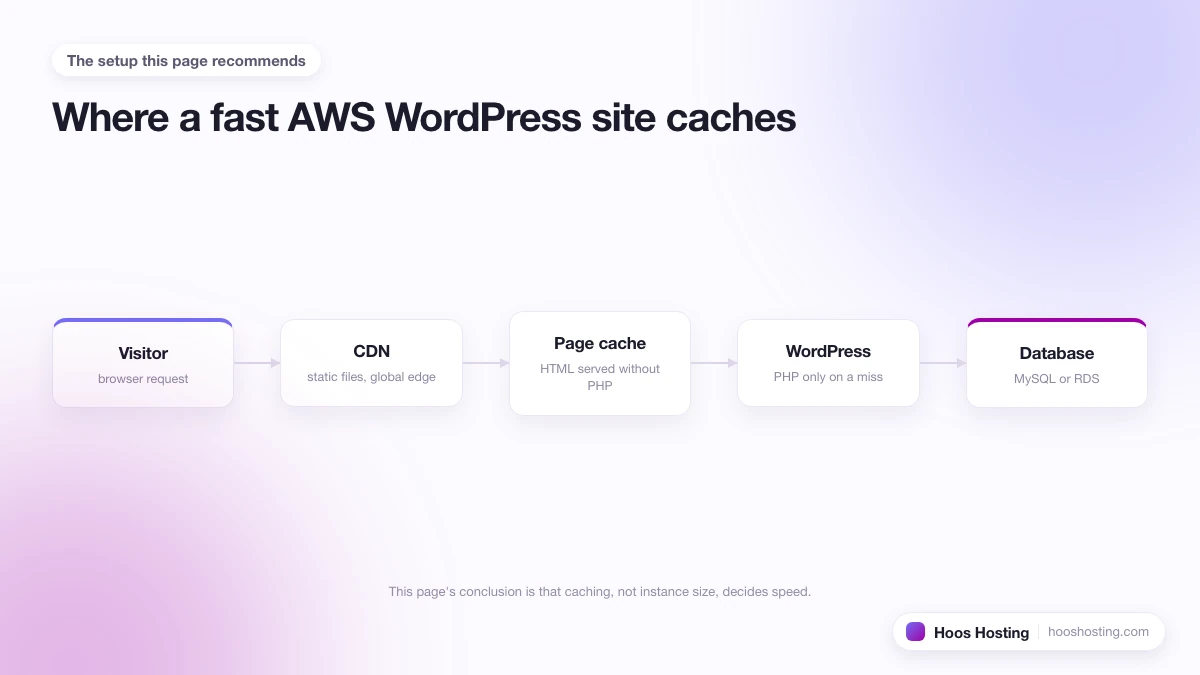
The Cloudways Caching Stack Explained
Cloudways exposes four distinct caching layers, and getting real speed gains means knowing what each one does. Mixing them up or running two object caches together can actually slow a site down.
Varnish (Full-Page Cache)
Varnish sits in front of PHP. When an anonymous visitor hits a cached page, Varnish serves it from memory in 5-20ms without touching WordPress at all. This is the layer that gives Cloudways its sub-200ms TTFB on cached pages. Varnish is enabled by default on every Cloudways application and bypasses automatically for logged-in users, WooCommerce cart sessions, and admin pages. The cache lifetime is configurable in Application Settings > Application Management > Varnish Settings.
Memcached and Redis (Object Cache)
Object cache stores results of database queries so WordPress does not repeat the same expensive query for every request. Cloudways pre-installs both Memcached and Redis. Redis is the more flexible option for WordPress because it persists across PHP restarts and has better serialisation for WP_Object_Cache. Pick one, not both. Most WordPress sites benefit more from Redis; high-traffic WooCommerce stores sometimes prefer Object Cache Pro (a paid Redis-based plugin) for finer control over cache groups.
Browser Cache and Gzip
The last layer is the browser. Setting long max-age headers on images, CSS, and JS means repeat visitors load almost nothing. Cloudways handles Gzip compression at the server level; you do not need a plugin for it. Confirm it is working by running your site through GTmetrix and checking that the “Compress components with gzip” line scores 100.
Breeze vs WP Rocket on Cloudways
Breeze is Cloudways' own free caching plugin. It handles minification, lazy loading, browser cache headers, and database cleanup, and it talks directly to Varnish so purges flush both layers when you publish a post. WP Rocket is a paid alternative with more granular controls (per-page exclusions, critical CSS, delayed JS execution) and better preloading. The decision: Breeze is enough for most blogs and brochure sites; WP Rocket pays for itself if you run a WooCommerce store, have a heavily-customised theme, or need critical CSS for Core Web Vitals.
The detailed comparison is in our post on whether to use WP Rocket with Cloudways. For the Breeze setup steps and other on-server tuning, see how to make Cloudways faster for WordPress.
CDN Choices: Cloudways CDN vs Cloudflare
A CDN moves static assets (images, CSS, JS) to edge servers near your visitors. Cloudways offers a built-in CDN add-on at $1 per 25 GB of bandwidth, set up in one click. Cloudflare is the free alternative with a more aggressive free tier and DDoS protection on top. The choice depends on geography and traffic patterns:
- If most of your traffic is in one country and you want zero configuration, Cloudways CDN is fine.
- If your audience is global or you want DNS-level security, Cloudflare is the better pick.
- If you need enterprise-grade routing, the Cloudflare Enterprise add-on through Cloudways ($4.99/month) beats both free tiers on TTFB.
For the Cloudflare setup walkthrough, see how to use Cloudflare with Cloudways. The decision-focused post is should I use Cloudflare with Cloudways. If you are using Cloudflare for security as well as speed, our Cloudways security and SSL guide covers the SSL mode setting and WAF interactions.
When to Scale the Server
Caching helps with already-cached requests. It cannot help when traffic spikes past what the server can handle uncached, or when admin tasks pin the CPU. Three signs you need a bigger server:
- CPU graphs in the Cloudways monitoring panel sit above 70 percent for more than 15 minutes during normal traffic.
- TTFB on uncached requests (logged-in admin, WooCommerce checkout) exceeds 800ms.
- You see MySQL “too many connections” errors in the application logs.
Scaling a Cloudways server takes about ten minutes and incurs only a few seconds of downtime. The steps and what to watch out for are in how to scale a server on Cloudways.
PHP Version, Memory Limit, and OPcache
Four under-the-hood settings make a measurable difference and most accounts never touch them.
PHP version. Cloudways supports PHP 8.1, 8.2, and 8.3 per application. PHP 8.2+ is noticeably faster than 7.4 for typical WordPress workloads, but plugins built for PHP 7.4 can break. Always change it on a staging clone first, then apply to the live application via Application Settings > PHP Version.
PHP memory limit. The default is 128 MB. WooCommerce stores and page builders often need 256 MB. Raise it in Application Settings > PHP & MySQL Settings if you see “Allowed memory size exhausted” errors in the debug log.
OPcache. OPcache stores compiled PHP bytecode in memory so PHP does not re-parse and re-compile files on every request. Cloudways enables it by default, but you can tune the memory ceiling under Application Settings > PHP Settings. For sites with large themes or many plugins, increasing opcache.memory_consumption from the default 128 MB to 256 MB reduces compilation overhead noticeably.
MySQL connections and innodb_buffer_pool_size. The defaults work for small sites. On servers with 2 GB RAM or more, raising innodb_buffer_pool_size to around 50 percent of server memory (in Server Management > Settings & Packages > Advanced) reduces database query time on read-heavy WordPress sites.
PHP Workers: The Most Overlooked Cloudways Setting
PHP workers control how many simultaneous PHP processes your application can run at once. Each uncached request to your WordPress site needs a PHP worker to process it. If all workers are busy when a new request arrives, that request waits in a queue, which adds directly to your TTFB and can cause apparent slowdowns even when Varnish is fully warm and the server has idle CPU.
Cloudways sets PHP workers per application in Application Settings > Application Management > PHP-FPM Settings. The default is typically 1 worker per application on entry-tier servers. That is fine for sites where Varnish handles nearly all traffic, but it becomes a bottleneck for:
- WooCommerce stores (cart and checkout pages bypass Varnish entirely, so every checkout is a PHP worker request)
- Membership sites where logged-in users bypass Varnish
- High-admin-traffic sites where editors work simultaneously
- Sites with heavy AJAX or REST API usage
The right number of workers depends on server RAM, not just request volume. A general starting point: set workers to roughly half the server’s RAM in GB. A 2 GB DigitalOcean server handles 2 to 4 workers comfortably; a 4 GB server can run 4 to 8. Beyond that, each additional worker consumes roughly 50 to 100 MB of PHP-FPM memory, so adding too many on a small server exhausts RAM and forces the OS to swap, which is slower than the queue it was meant to avoid.
Check whether workers are the bottleneck by watching the PHP-FPM status in Application Management. If “active processes” consistently equals “max children” during traffic, you are hitting the worker ceiling. Raise the count or scale the server before tuning anything else.
Core Web Vitals on Cloudways
Google's Core Web Vitals (Largest Contentful Paint, Interaction to Next Paint, and Cumulative Layout Shift) influence both rankings and user experience. Cloudways' server-side stack addresses two of the three directly.
LCP (Largest Contentful Paint). The target is under 2.5 seconds. Varnish is your biggest lever: a properly warmed Varnish cache typically reduces LCP from 3-5 seconds (shared hosting baseline) to under 1.5 seconds for anonymous visitors. For logged-in users where Varnish is bypassed, Redis object cache and a CDN carry the load. Image format matters too: serving your hero image in WebP via ShortPixel or Imagify typically saves 30-50% on file size vs JPEG at the same quality.
If you are still deciding whether to move from shared hosting to Cloudways, our guide on what makes Cloudways different from shared hosting covers the performance gap, scalability, and pricing trade-offs in detail.
INP (Interaction to Next Paint). INP measures how quickly the page responds to clicks and taps. Server response time contributes here for any click that triggers a PHP request (search, filters, WooCommerce add-to-cart). Redis object cache and a fast PHP version (8.2+) reduce that server contribution. The bulk of INP improvement usually comes from reducing third-party scripts and deferring non-critical JS, which Breeze and WP Rocket both handle.
CLS (Cumulative Layout Shift). CLS is layout stability and is almost entirely a front-end concern. The main Cloudways-related cause is images without explicit width and height attributes shifting the page as they load. Adding dimensions to all image tags (or switching to a theme that handles this) resolves most CLS problems regardless of hosting.
Check your real-world Core Web Vitals data in Google Search Console under Experience > Core Web Vitals. The “lab” scores from PageSpeed Insights are useful for testing changes; the “field data” in GSC is what Google uses for ranking.
Benchmarking and Real-World Tests
Speed scores from one tool in isolation are noisy. Run all three of these in a controlled way:
- GTmetrix from a test location near your audience, three runs averaged. Watch Largest Contentful Paint and Total Blocking Time.
- WebPageTest with the “Repeat View” option enabled to see what a returning visitor actually experiences after browser caching kicks in.
- Google PageSpeed Insights for Core Web Vitals against the real visitor data Google has collected on your site.
Always purge Varnish and the Cloudflare cache before each test pass, otherwise you are timing the cache, not the change. The Cloudways dashboard has a one-click Varnish purge under Application Management > Application Settings.
Common Performance Mistakes
Four mistakes show up often enough on Cloudways accounts that they are worth flagging:
- Running two cache plugins at once. Breeze plus WP Rocket plus WP Super Cache will produce stale pages and broken admin behaviour. Pick one and remove the others completely.
- Forgetting to enable object cache. Varnish helps anonymous traffic. Object cache (Redis) helps logged-in users and admin. Most sites need both.
- Sizing the server for peak instead of average. Cloudways scales in minutes. Right-size for average traffic and scale up before known events rather than running an oversized server permanently.
- Skipping image optimisation. Even the fastest server cannot rescue a 3 MB hero image. Use a plugin like ShortPixel or Smush to serve WebP, plus lazy loading from Breeze or WP Rocket.
- Not purging cache after a domain change. When you update your primary domain in Cloudways, Varnish continues to serve pages cached under the old domain URL until its TTL expires or you manually clear it. After any domain change, purge Varnish from Server Management, flush Redis, and clear any CDN cache. The guide on changing an application domain on Cloudways includes a full cache-purge checklist.
If you are still evaluating whether Cloudways is the right host for your speed needs, the full Cloudways review covers benchmark numbers from third-party tests. To start a free trial and run your own benchmarks, you can try Cloudways directly.